


How to make a registration
Please go to the web site http://auc-bid.com/
You can do it via computer or mobile phone
A. Please click the 「Registration」 button
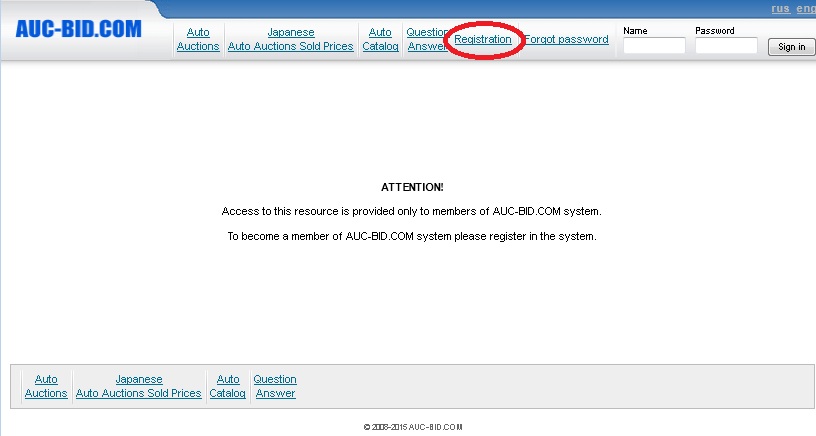
B. It will jump to the next page, please fill all the boxes
After filling all the boxes please click the 「Register」 button
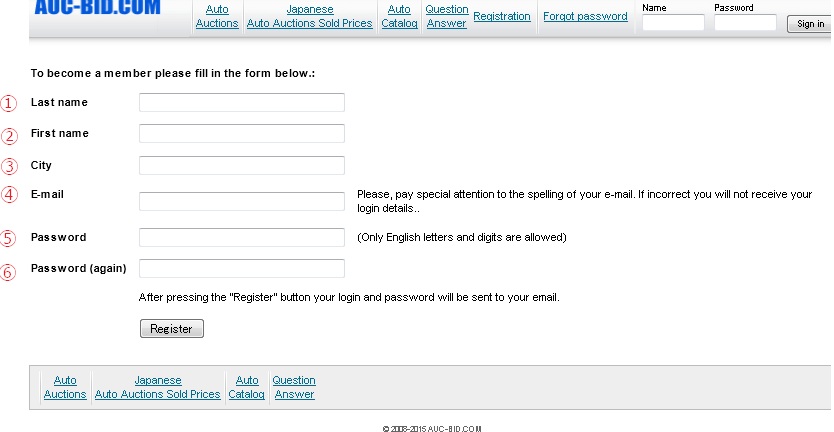
①Last name:
②First name:
③City:
④E-mail:
⑤Password:
⑥Password(again):Same password as
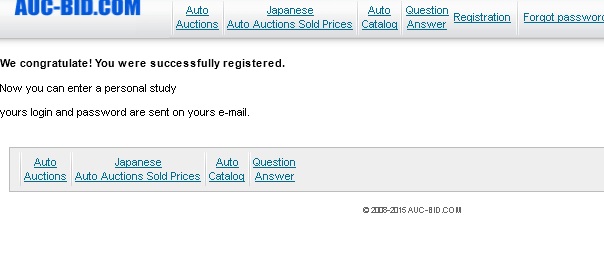
C. If the next page appears it means that your registration has succeeded
Please check your e-mail account registered(④)
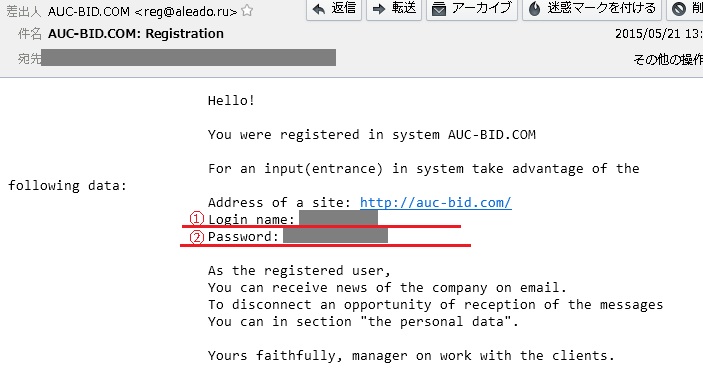
You will receive an e-mail with your Login Name and Password
Don't forget this information ①Login name ②Password
D. Go to the TOP PAGE
Insert your Name/Password and click the 「Sign in」 button
How to change your ID
At time of registration, you will automatically be given an ID generated by Auc-Bid.
After your first log-in, please change your ID following the instructions below.
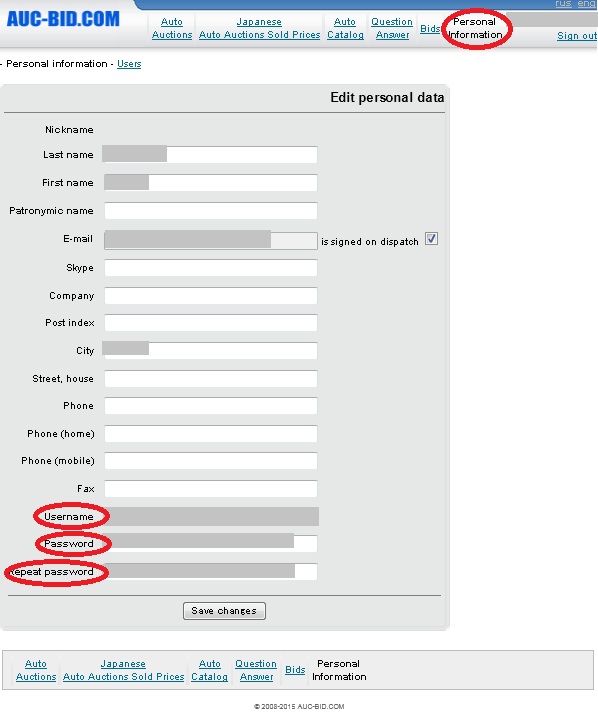
Please select "Personal Information" after logging in to Auc-Bid.
Your current information will be in the "Username" column as shown above.
Please change this to your client name registered with Hanamaru Auction.
If you want to change your password as well, please enter your new password
in to the "Password column", and re-enter in the "Repeat password" column.
Please click "Save Changes" to complete the update of your information.
How to search for a vehicle

Please choose Auto Auctions
You can select the conditions and search the vehicles
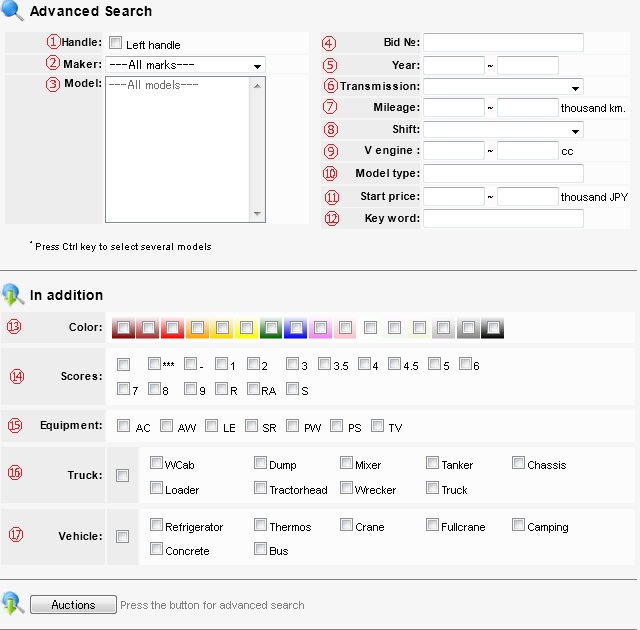
①You can search vehicles with left handle
②You can select vehicle's Maker
③One that you select the Maker, it will appear all the Models available
④You can search the vehicle for the Bid number
⑤Year (The year that the vehicle was registered on the system for the first time, it's not the manufacturing year)
⑥You can select the Transmission AT:automatic transmission or MT:manual transmission
⑦You can search vehicles according to the Mileage
⑧You can search vehicles according to the Shift
⑨You can search vehicles according to the engine displacement
⑩You can search vehicles according to the Model type
⑪You can search vehicles according to the Start price
⑫You can fill a Key word and search a vehicle
⑬You can select the vehicle for the color
⑭You can search vehicles according to the Scores
⑮You can search a vehicle with Equipment
If you click the ACTIONS button you will able to see all the Auction Houses listed

Example:
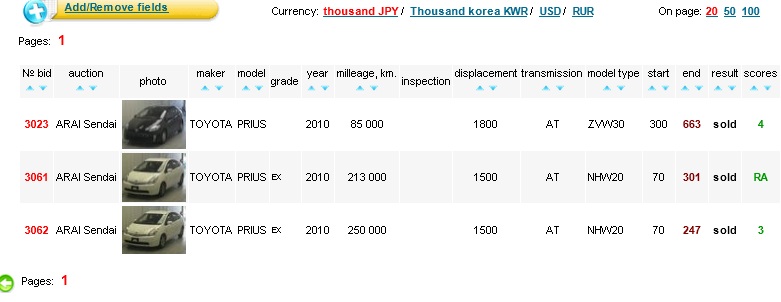
How to make an Offer
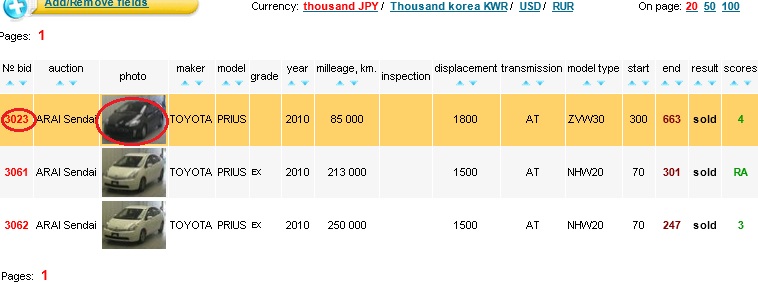
a) Once that you decide the vehicle, please click the Vehicle's Photo or №Bid
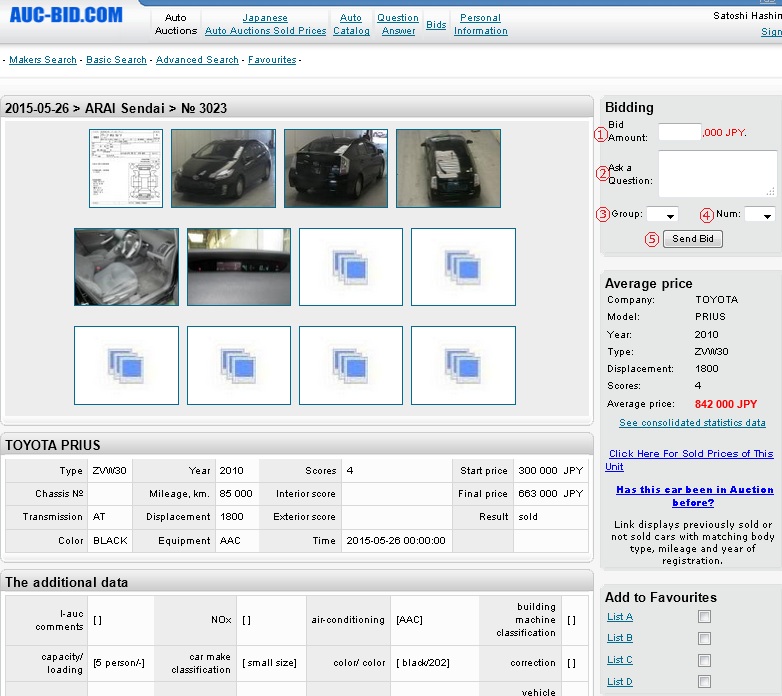
b) It will jump to the next screan, please place the following details
①Bid Amount
※Please be aware that as result of Live Auction the buying price could turn higher than your Bidding Amount
②If you had any inquiry regarding the vehicle please place it here
※Please be aware that it could take some time and there are some inquiry that we can't answer
In case that you just want to purchase a specific vehicles number from a group
Please use the next boxes: ③Group ④Num
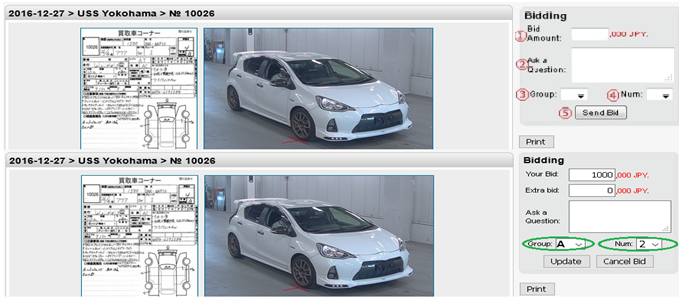
Group: If you want to purchase just 1or 2 vehicles, you should choose a Group when you are placing the bid
Group : Selecting a letter between A~D you can classify your bids
Num : Selecting a specific number 1 ~ you can indicate the numbers of vehicles that you want to purchase
Example
:When you select Group:B Num:1 It means that you want to purchase 1 vehicle from a group of 2 vehicles
:When you select Group:A Num:2 It means that you want to purchase 2 vehicles from a group of 3 vehicles
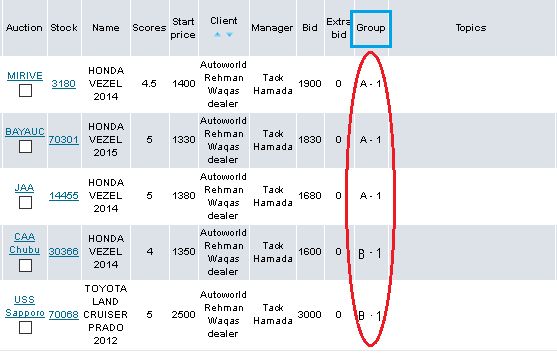
* Once that we purchase the numbers of vehicles indicated at "Num" we will cancel the others bids
⑤After placing all the details required, please click the Send Bid button
It will pop-up the next page ,please click the OK button
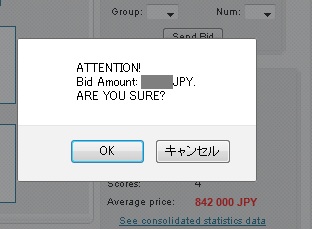
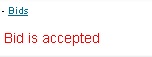
If the next messege appears, it means that your bid has been made
How to change your offer price or cancel your bid
a) Please go to the BIDS page

b) Click the Auction's Stock Number that you want to change
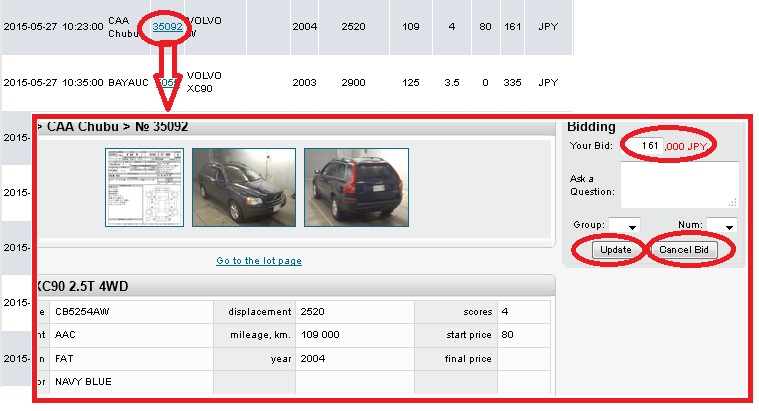
c) At the right side will appear you bidding price, you can change here the price or cancel it.
To change the bid price please place the new amount and clic the Update button.
To change the bid price please clic the Cancel Bid button.
Bids Screen
Please check all the information regarding each icon.
What does mean each "Status"

|
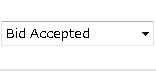
Your offer has been send succefully. |
|
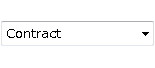
Your offer has been accepted. |
|
You had win the vehicle. |
|
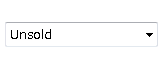
The vehicle wasn't sold but is open to negotiation. If the negotiation start price is lower than your offer, we are going to negotiate it for you. |
|
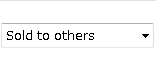
The vehicle was sold to others. |
|
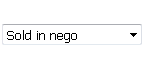
The vehicle was sold to others trough negotiation. |
|
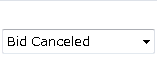
The offer has been canceled. |
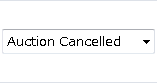
|
The owner has cancel the auction. |
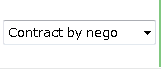
|
You had purchase the vehicle trough negotiation. |

|
(It will appear on top of your offer price) There is another offer for the same auction and with a higher price. In this case we can't accept your offer. |

|
(It will appear on top of your offer price) There is another offer for the same auction but with a lower price. In this case if we buy the vehicle, it will be yours. |
※If we have several offers for the same auction, we will only accept the highest one.
Please be aware that we can't sisclose other's offer prices.